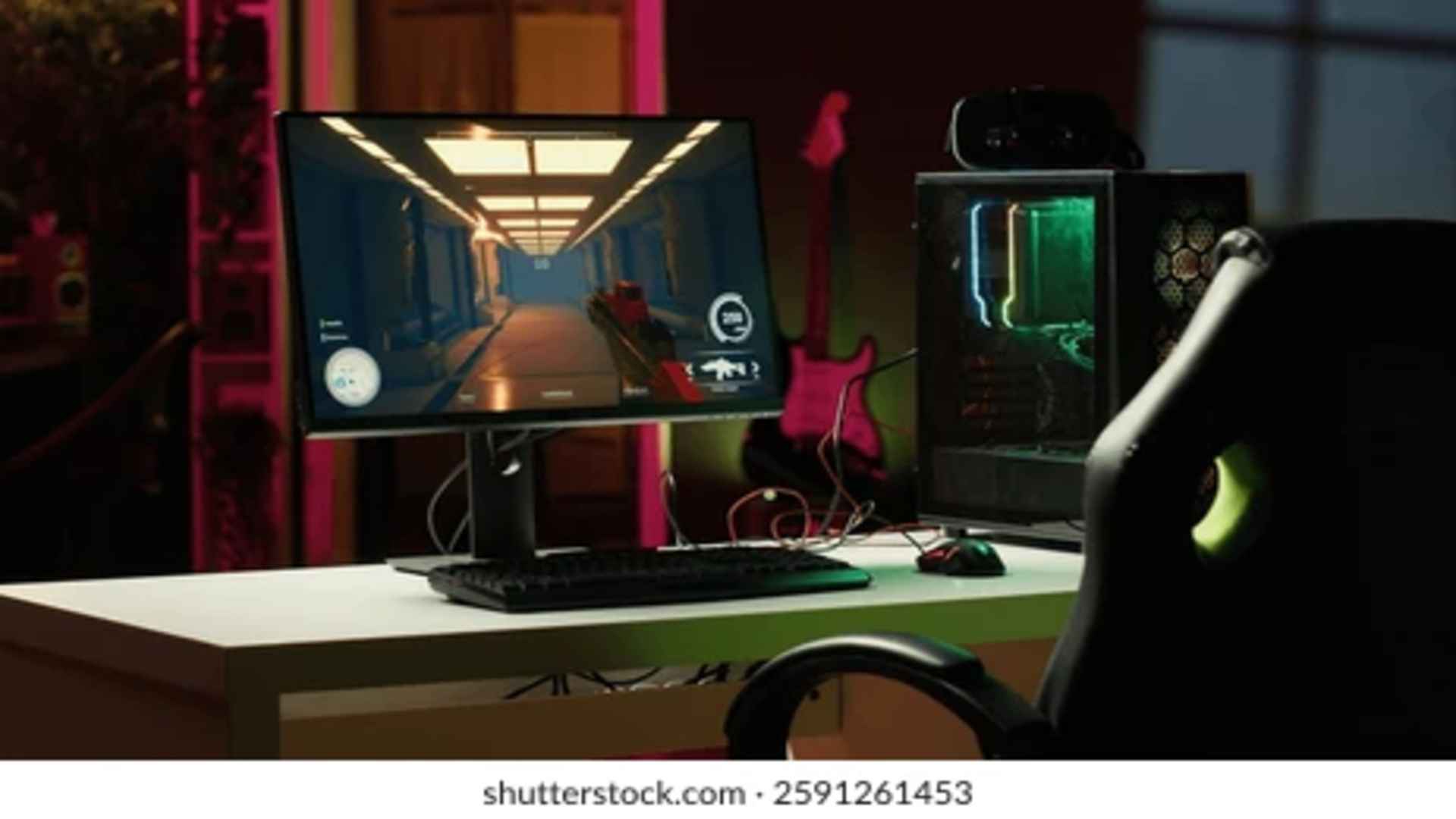
The PlayStation 5 is celebrated for its powerful hardware and the immersive feedback of its DualSense controller. However, many gamers prefer the precision and speed that only a traditional desktop setup can provide. The good news is that Sony built native compatibility into the system, allowing players to utilize external peripherals for various tasks.
How to Connect Your Input Devices
Setting up a wired keyboard is as simple as plugging the cable directly into one of the available USB ports on the front or back of the console. The system will immediately recognize the new accessory and prompt you to select which player profile is using it. This seamless plug-and-play functionality eliminates the need for complicated installation processes or third-party adapters.
For those who prefer a wireless setup, Bluetooth devices can be paired through the system settings menu quite easily. You simply need to navigate to the accessories tab and set your hardware into its designated pairing mode. Once the console discovers the signal, confirming the connection takes only a few seconds.
Navigating the User Interface and Text Entry
One of the immediate benefits of this setup is the massive improvement it brings to typing and communication. Searching for titles in the digital store or entering long passwords becomes significantly faster than using an on-screen digital keyboard. Gamers who frequently use text chat to coordinate with team members will find this addition incredibly useful.
Beyond basic typing, you can also use the directional arrow keys to browse through the main dashboard menus. While it cannot entirely replace the controller for system-wide navigation, it serves as an excellent companion tool. This dual-input flexibility provides a more efficient experience when managing your console settings.
Understanding Game Compatibility Limits
While the console software fully supports external hardware, individual game integration depends entirely on the choices made by the software developers. Certain genres like first-person shooters, strategies, and massive multiplayer online games frequently offer native control layouts. You should check the official settings of your favorite titles to confirm if they allow this control scheme.
It is important to note that many competitive multiplayer titles separate players based on their chosen input method to ensure fair matchmaking. Plugging in a keyboard might place you in lobbies with PC players rather than standard console users. Understanding these software limitations will help you set realistic expectations for your gameplay experience.
Adjusting Settings for Optimal Performance
To maximize your comfort, the system allows you to customize key repeat rates and language layouts within the accessory settings. Tweaking these values ensures that your keystrokes feel responsive and mirror your preferred computing environment. Taking a moment to adjust these options can drastically improve your overall satisfaction.
Finding the right balance between hardware options will ultimately elevate how you interact with your console. Whether you are typing quick messages or looking for competitive precision, exploring this capability opens up new possibilities. Utilizing these features transforms your machine into a more versatile entertainment hub.