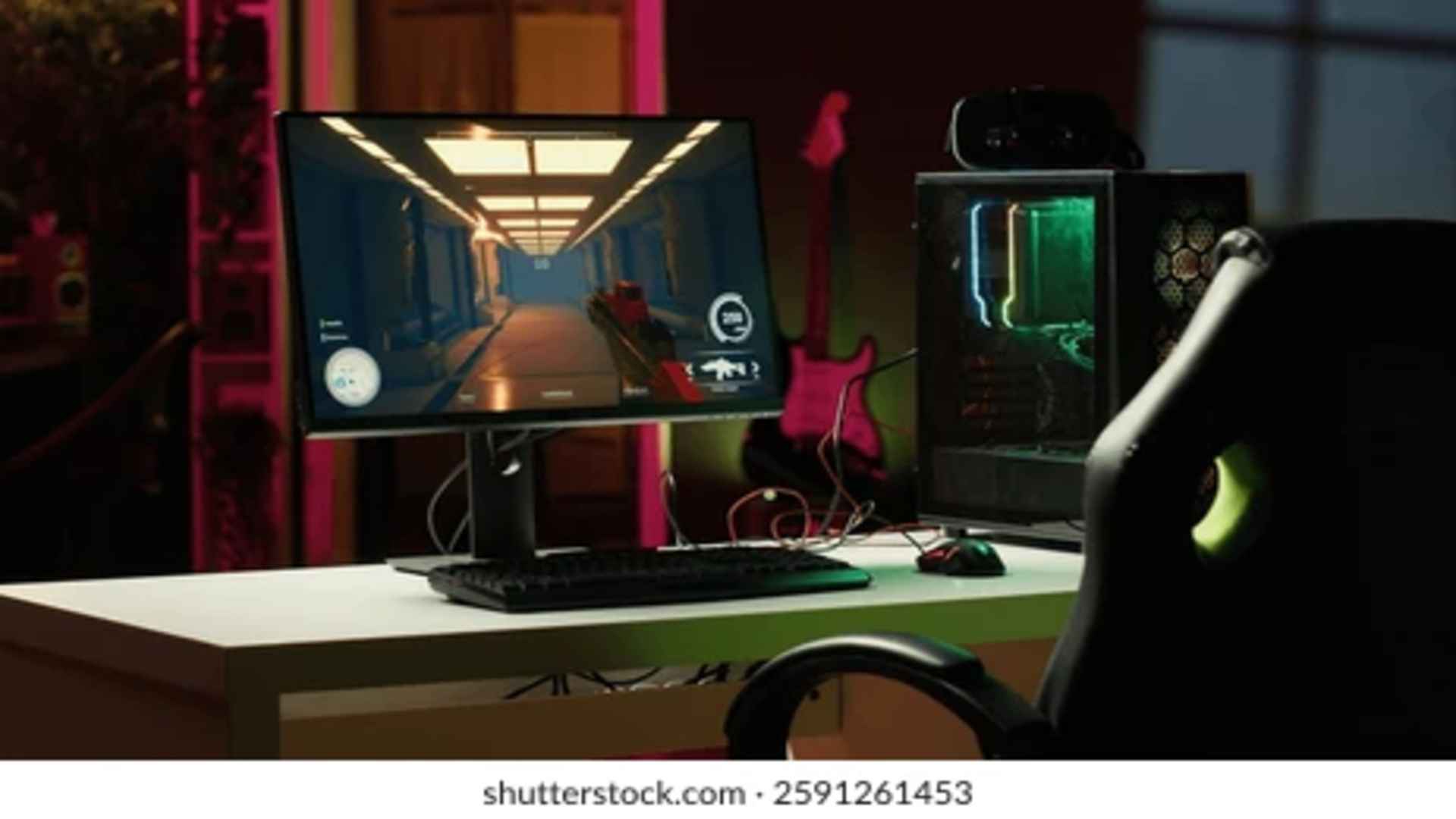
Playing modern PC games in exclusive fullscreen mode offers optimal graphical performance and reduced input lag, but stepping away from the game temporarily can sometimes be frustrating. Whether you need to reply to a quick message, change your music playlist, or check a browser tab, knowing how to minimize your active application without shutting it down completely is an essential PC skill. Fortunately, operating systems provide several built-in keyboard shortcuts and settings to make task switching smooth and hassle-free.
Essential Windows Keyboard Shortcuts
The fastest way to drop out of a fullscreen title is by utilizing standard system shortcuts on your keyboard. Pressing the Alt and Tab keys simultaneously allows you to cycle through open applications and switch focus away from the game immediately. Another reliable method is pressing the Windows Key combined with D, which instantly minimizes all active windows and reveals your desktop.
If you prefer a direct approach, pressing Ctrl, Shift, and Escape opens the Task Manager, forcing the operating system to prioritize another window over your game. Additionally, tapping the Windows Key alone often opens the Start Menu, releasing the mouse cursor lock and sending the fullscreen application to the background.
Switching to Borderless Windowed Mode
While exclusive fullscreen mode maximizes hardware performance, it can occasionally cause screen flickering or crashes when minimized. Transitioning your game's display settings to Borderless Windowed mode eliminates this issue entirely. This setting renders the game at your screen's full resolution while treating it as a standard window.
In borderless mode, pressing Alt and Tab or tapping the Windows Key allows your cursor to move seamlessly to a second monitor without minimizing the display. This setup is particularly ideal for content creators, streamers, and multitaskers who constantly switch between software.
Creating and Using Virtual Desktops
For gamers running complex setups or managing multiple active programs, Windows Virtual Desktops offer an elegant organization solution. By pressing the Windows Key and Tab, you can access Task View and create a secondary clean workspace separate from your game screen. Swapping between desktops using Ctrl, Windows Key, and the Left or Right arrow keys lets you manage other apps seamlessly while leaving your gaming session completely intact.
Troubleshooting Games That Refuse to Minimize
Certain older titles or poorly optimized software may capture the system cursor and block standard desktop shortcuts. In these situations, pressing Alt and Enter can force the game out of fullscreen mode and into a standard windowed layout. Once the title is windowed, you can easily access the standard minimize button in the upper right corner of the app frame.
If a game freezes during a minimizing attempt, using the Ctrl, Alt, and Delete menu provides a safe environment to bring up your desktop or open system utilities safely. Keeping your graphics drivers up to date also prevents display driver crashes when frequently switching back and forth from fullscreen games.